Advanced Usage
Upload using Command Line 2.1.0+
PicGo started supporting to use command line to call to PicGo clients for uploading since version 2.1.0.
You can use upload to upload the image on your clipboard and use upload xxx.jpg to upload the image in the specific path.
Windows
For Windows users, you can upload your image using PATH\PicGo.exe upload, where 'PATH' is your PicGo path.
macOS
For MacOS users, you can upload your image using /Applications/PicGo.app/Contents/MacOS/PicGo upload.
Linux
For Linux users, you can upload your image using PATH/PicGo.AppImage upload, where 'PATH' is your PicGo path.
PicGo-Server Usage 2.2.0+
PicGo has a small built-in server that receives HTTP requests from other applications to upload images since 2.2.0.
Default listening address: 127.0.0.1. Default listening port: 36677
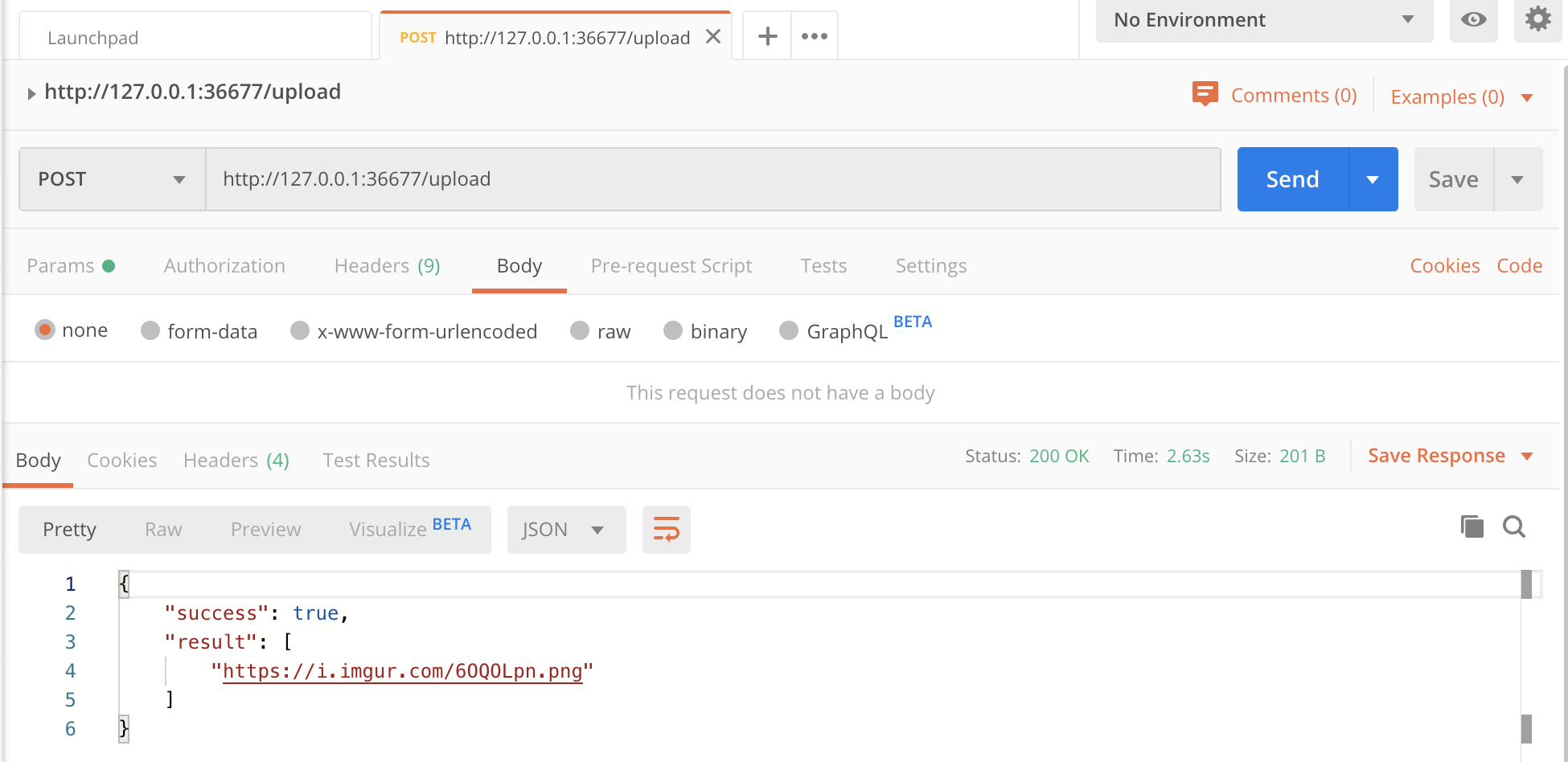
Upload the image on clipboard by calling HTTP
- method:
POST - url:
http://127.0.0.1:36677/upload(use the default setting as an example)
Then, you can upload your image.
Returned data:
{
  "success": true, // or false
  "result": ["url"]
}
Upload the specific image by calling HTTP
- method:
POST - url:
http://127.0.0.1:36677/upload(use the default setting as an example) - request body:
{list: ['xxx.jpg']}must be JSON-formatted
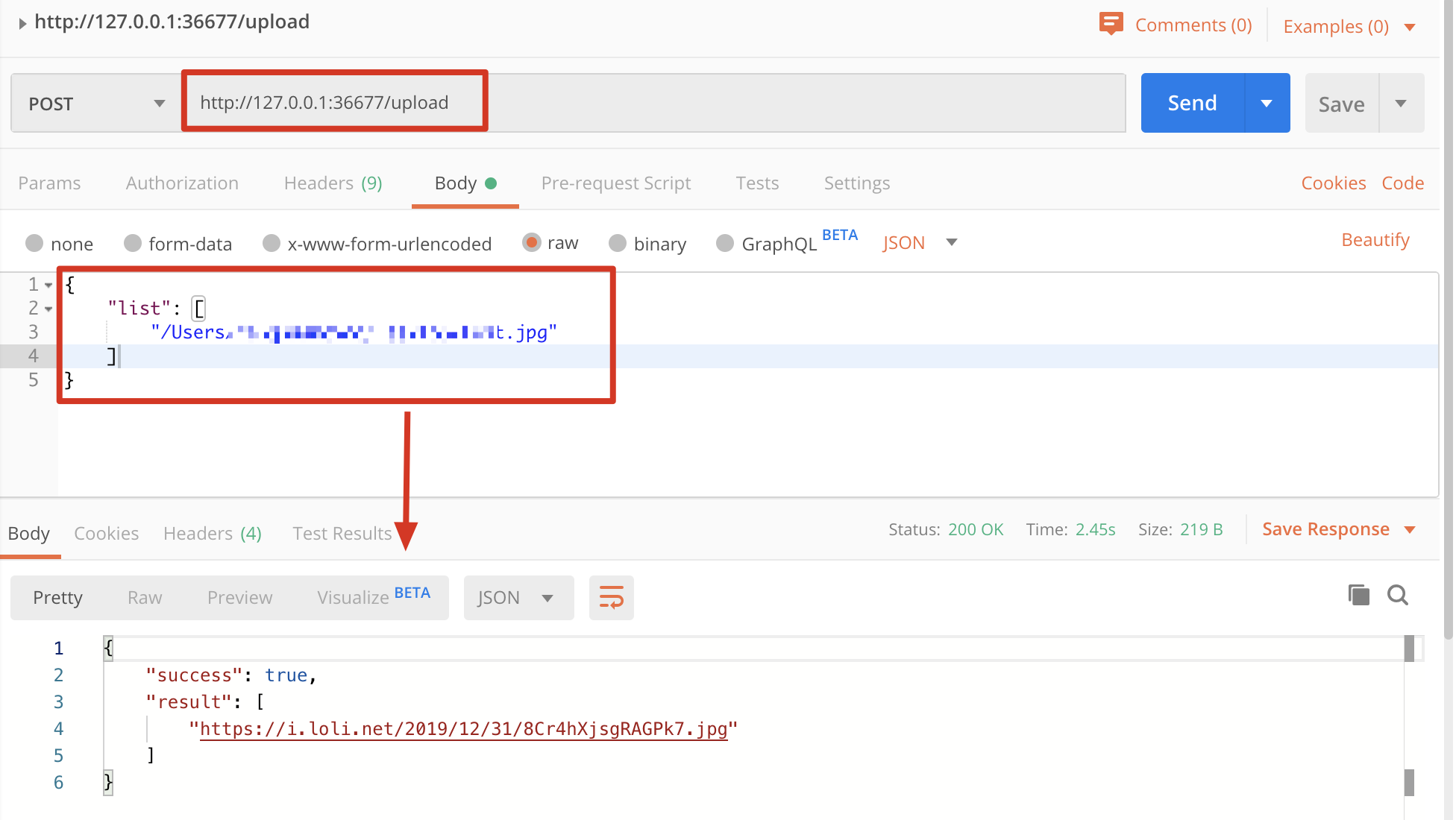
{
  "success": true, // or false
  "result": ["url"]
}
Upload images with HTTP form data 2.4.0+
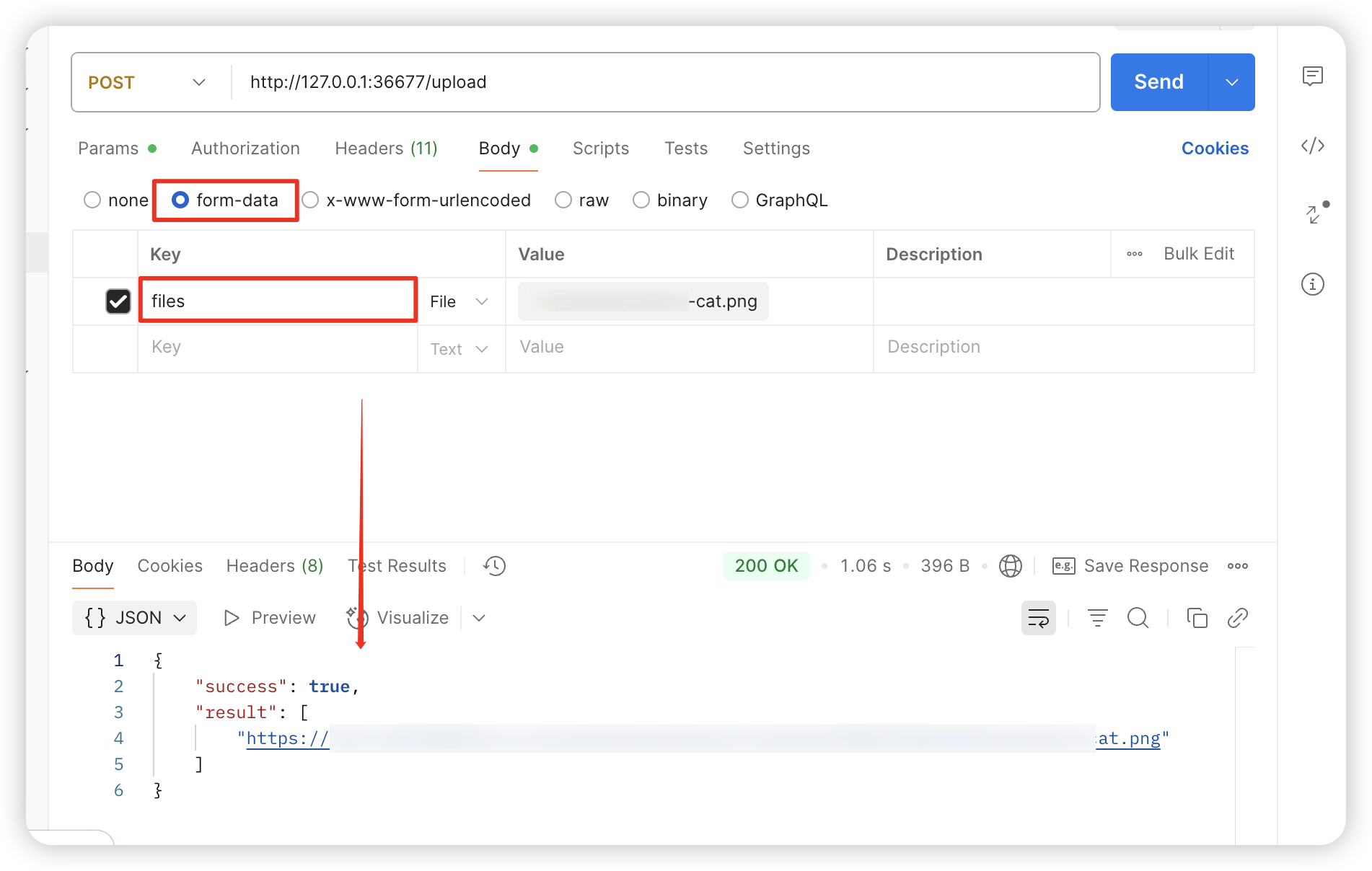
Starting from 2.4.0, PicGo-Server also accepts multipart form-data uploads. Thanks to @happy-game for the contribution!
- method:
POST - url:
http://127.0.0.1:36677/upload(using the default settings as an example) - request body: form-data whose key is
filesand value is the image file. Multiple files are supported at once.
PicGo Mobile App Integration 2.3.0+
If you want to use PicGo on your phone, install flutter-picgo. Thanks to @hackycy for building it!
Click the information bar button in the lower-left corner of the main window and choose "Generate image host configuration QR code".
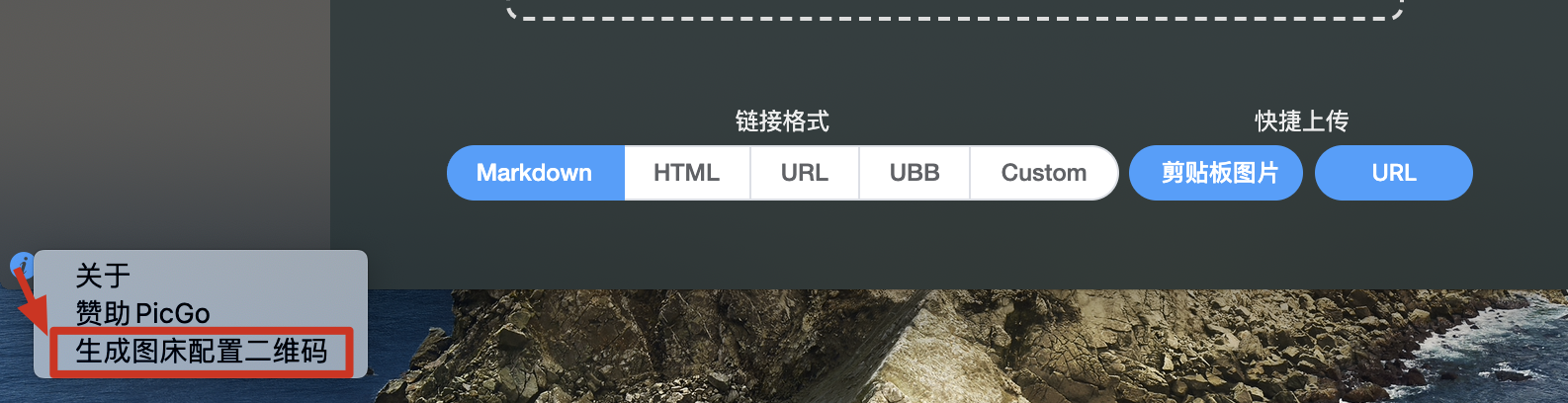
Then use flutter-picgo to scan the QR code and import your image host configuration instantly.
PicGo Repair Toolbox 2.4.0+
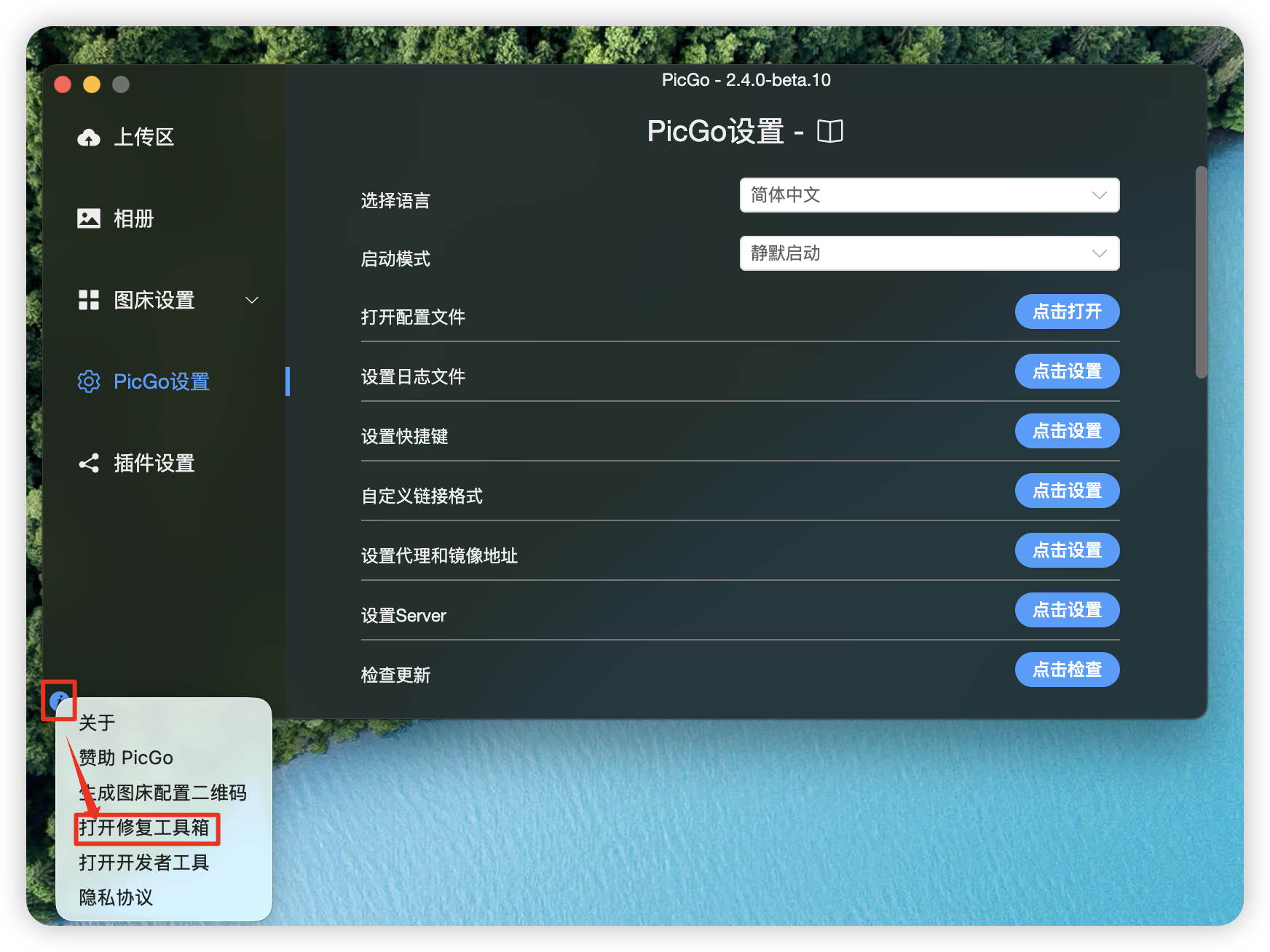
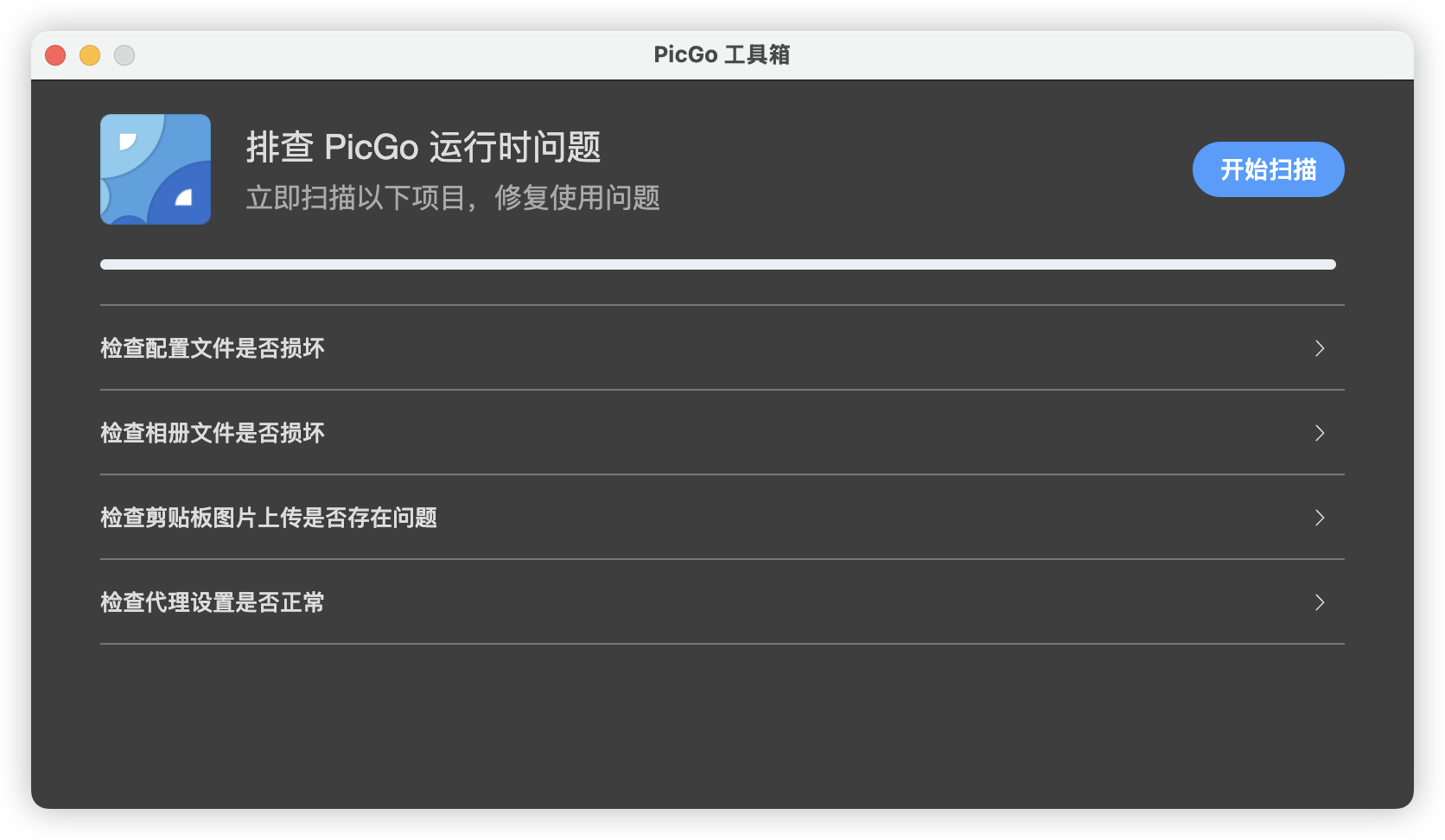
Starting in 2.4.0, you can find a "PicGo Repair Toolbox" entry under the i button on the main interface. Use it to troubleshoot and fix issues yourself when PicGo behaves abnormally.